To animate a photo online in 2026, upload your image to a browser-based AI tool, choose a motion preset or describe the movement, pick a length of 5–12 seconds, and generate. The whole process takes 1–3 minutes, runs entirely in your browser, and needs no software to install.
This guide shows you how to animate a photo step by step, compares the best AI photo-animation tools of 2026, and breaks down exactly what each clip costs — so you can pick the right tool for portraits, family photos, or restored vintage images.
What is photo animation?
Photo animation turns a single static image into a short moving video. Modern image-to-video AI models predict realistic motion — facial micro-expressions, hair movement, subtle camera drift — by interpolating frames between the start and end of the clip, so a still portrait can smile, blink, or wave without any frame-by-frame editing. In 2026 this is fully automated: you provide one photo and the model generates every in-between frame.
You can animate portraits, family photos, vacation pictures, or even restored vintage images. For the most realistic motion, use a high-resolution photo with clearly visible faces.
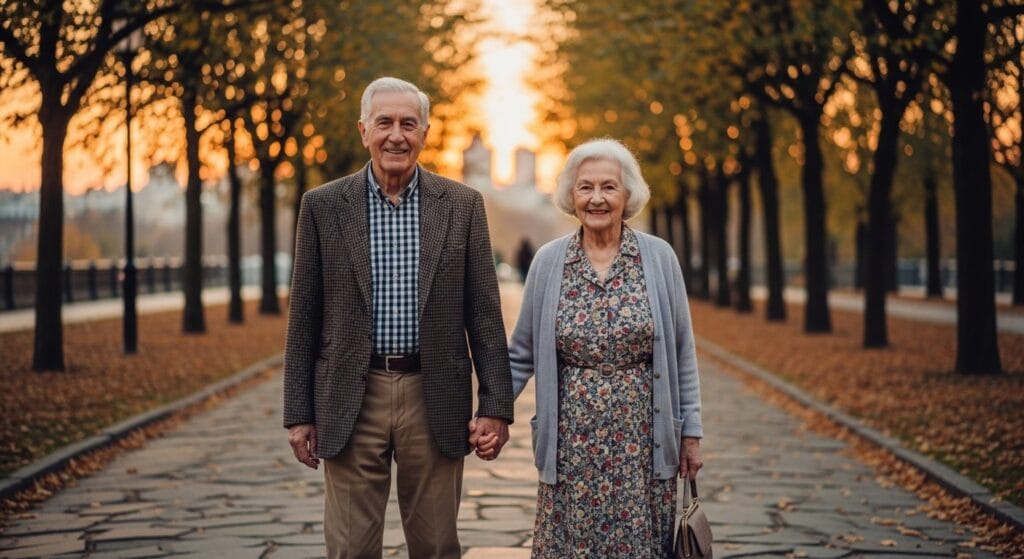
A still couple photo, ready to be animated into a short video.
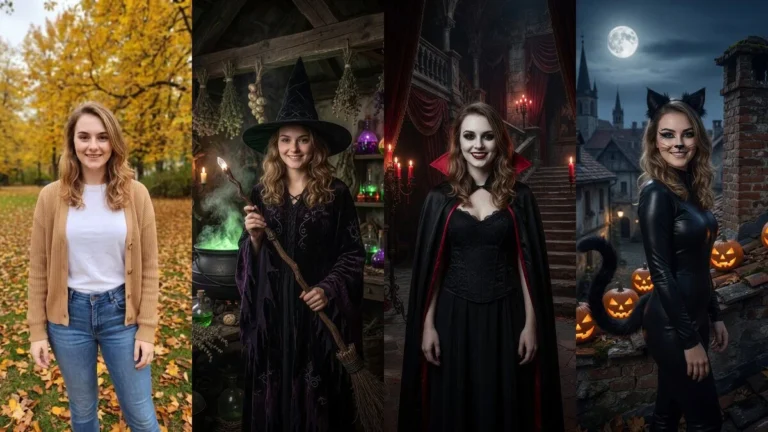
Your photo can look like this too
Try it on your own picture — no card, no subscription, and you get free credits to start.
Select the animation tool in the editing panel. PixiFixi offers 34 ready-made motion presets grouped into five categories — emotions, dance, funny, natural, and seasonal — so you can pick an effect in one tap.
Step 4 – Pick a preset or write a prompt
Choose a ready-made preset or describe the motion yourself, for example:
“The couple walks slowly, smiling at each other.”
“The person gently waves and blinks naturally.”
Step 5 – Choose length and quality
Set the duration (5–12 seconds) and quality (720p Standard or 1080p HD). Longer, higher-resolution clips produce smoother, more cinematic motion.
Step 6 – Generate and download
Click generate and wait 1–3 minutes. When it’s ready, download your MP4 video and share it anywhere. Here is a result generated from the photo above:
Best AI tools to animate photos in 2026 (compared)
The best AI photo-animation tool depends on what you’re animating. For bringing a real person’s photo to life while keeping their face, a portrait-focused tool wins. For abstract 3D parallax or pro film work, other tools fit better. Here’s how the leading 2026 options compare:
Tool
Best for
Runs in browser
Keeps the face
Length / quality
Pricing model
PixiFixi
Portrait & family photo animation
Yes
High — preserves your face
Up to 12 s / 1080p
Credit-based, from 3 credits per clip
CapCut
General mobile video editing
App (mobile/desktop)
Medium
Varies
Free with watermark / paid tiers
Runway
Pro generative video
Yes
High
Long / HD+
Subscription
Immersity AI (LeiaPix)
3D depth / parallax motion
Yes
N/A (depth pan)
Short loop
Free tier / paid
Pika / Kling
Text- & image-to-video
Yes
Medium–high
Short clips
Credit / subscription
Third-party features and pricing change often — verify on each provider’s site.
If your goal is simply to animate a photo of a real person — a portrait, a couple, or an old family picture — PixiFixi is the most direct option: it works in the browser, keeps the original face, and gives you 34 one-tap motion presets. You can also create a full AI photoshoot or change the outfit on the same image before animating it.
How much does it cost to animate a photo? Is it free?
Realistic AI video is compute-heavy, so quality animation is rarely truly free. In PixiFixi, animation is credit-based and transparent: a 5-second 720p clip costs 3 credits, scaling up to 20 credits for a 12-second 1080p video. New accounts get starter credits to try PixiFixi’s editing tools — and because a clip starts at 3 credits, your first animation may need a small top-up. Credits never expire and there’s no subscription.
Duration
720p (Standard)
1080p (HD)
5 seconds
3 credits
6 credits
8 seconds
6 credits
12 credits
10 seconds
8 credits
16 credits
12 seconds
10 credits
20 credits
Credits = 3 + (seconds − 5) for 720p; doubled for 1080p.
What changed in AI photo animation in 2026?
Compared with earlier years, AI animation in 2026 delivers:
Smoother, more natural micro-expressions
Far better face consistency across frames
More realistic body and hair motion
Higher-resolution exports (up to 1080p HD)
More precise control through text prompts and presets
Tips for more realistic AI animation
Use a high-resolution image with a clearly visible face
Avoid extreme camera angles and heavy blur
Keep the motion subtle — small movements look the most natural
Write simple, realistic prompts rather than complex action scenes
Should you restore a photo before animating it?
Yes — if you’re animating an old or damaged image, restore it first. AI photo restoration removes scratches, sharpens detail, and revives faded colors, which gives the animation model a cleaner base and a noticeably better final video. Restore first, then animate.
Frequently asked questions
How do I animate a photo online?
Upload your photo to a browser-based AI tool like PixiFixi, choose a motion preset or describe the movement, set a length of 5–12 seconds, then generate. The video is ready in 1–3 minutes with no software to install.
Is animating a photo free?
Quality AI animation is rarely truly free because realistic video is compute-heavy. In PixiFixi, animation is credit-based, starting at 3 credits for a 5-second clip. New accounts get starter credits, but since a clip starts at 3 credits, your first animation may need a small top-up.
How much does it cost to animate a photo in PixiFixi?
A 5-second 720p clip costs 3 credits, rising to 20 credits for a 12-second 1080p video (1 extra credit per second, doubled for 1080p). Credits never expire and there is no subscription.
Can AI animate old or vintage photos?
Yes. For the best result, restore the old photo first to remove scratches and sharpen detail, then animate it. PixiFixi can do both in the same browser session.
Will the AI keep the person’s face when animating?
Yes. PixiFixi preserves the facial features from your uploaded photo and adds only natural motion, so the animated person still looks like themselves.
How long does it take to animate a photo?
Usually 1–3 minutes, depending on the clip length, resolution, and current server load.
What is the best AI tool to animate photos in 2026?
It depends on the goal: PixiFixi is best for animating real portraits and family photos while keeping the face, Runway suits pro generative video, and Immersity AI is good for 3D parallax motion. Judge tools by motion realism, face consistency, export quality, and ease of use.
Final thoughts
Animating a photo online in 2026 is easier than ever: upload an image, pick a motion, and download a short, realistic video in minutes — all in your browser. Whether you’re reviving an old family portrait or adding life to a recent selfie, the right AI tool keeps the face you know and adds motion that feels natural.