Image from a description
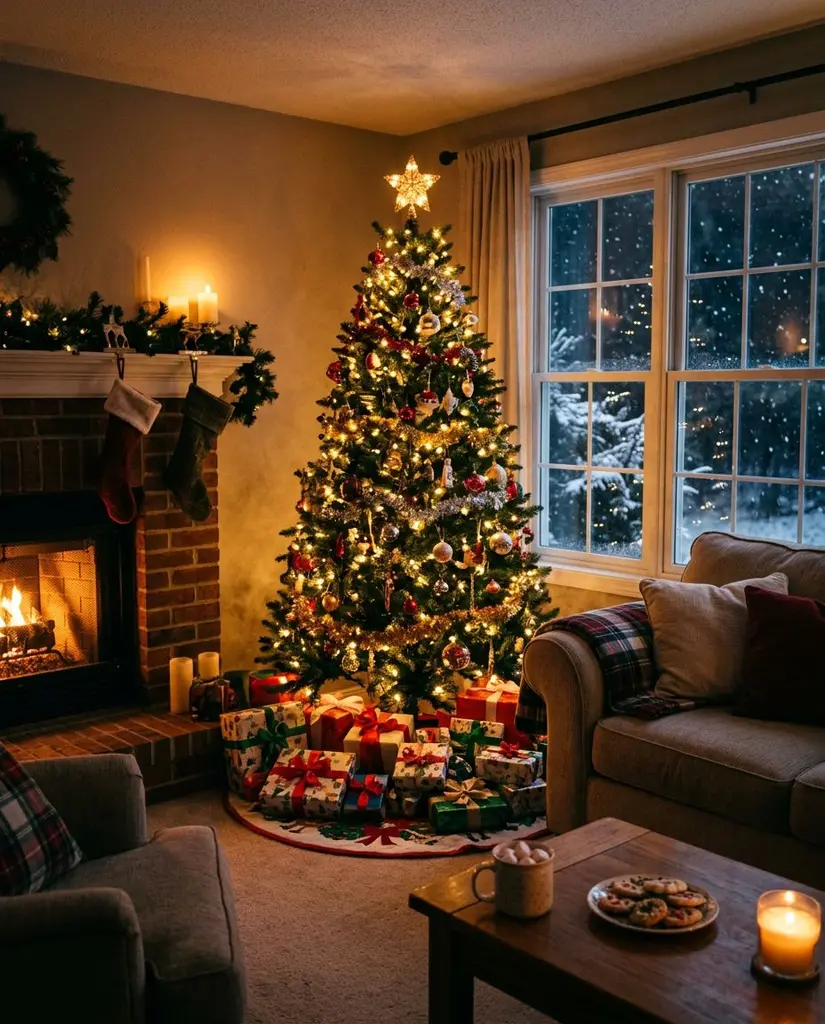
A landscape, a Christmas card, a poster, a pet, food — anything you can say in one sentence.
A free AI image generator that also works from your photo. Describe what you want to see and PixiFixi generates the image in seconds. Pick the format (square, portrait, story, landscape) and a style. Add your own photo and AI puts you into the scene you described. Then edit the result with the editor’s tools.

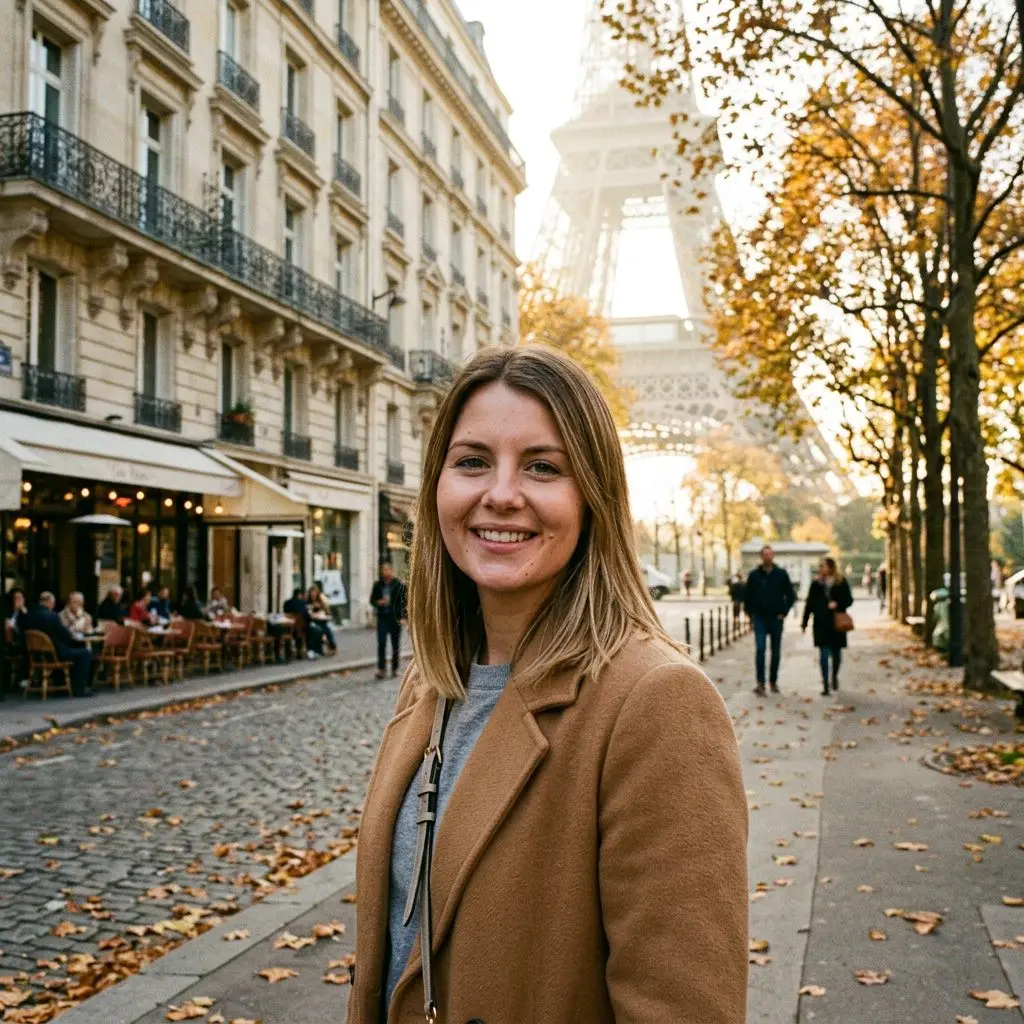
Most generators work from text alone. PixiFixi can also put a real person from a photo into the scene.
A landscape, a Christmas card, a poster, a pet, food — anything you can say in one sentence.
Add your photo and AI places you in Paris, on a beach or in a snowy forest. Your face stays yours.
Square for a profile, 4:5 for Instagram, 9:16 for stories, 16:9 for wallpapers and classic 3:2.
Photo, illustration, anime, 3D, oil painting and watercolour — or no style, and the description decides.
One click sends the image to the editor: change the background, add an object, upscale for print.
Turn the finished image into a short video on the same screen, without downloading anything.
Every image was made in PixiFixi from the description shown under it, at Standard quality, with no edits in another program.
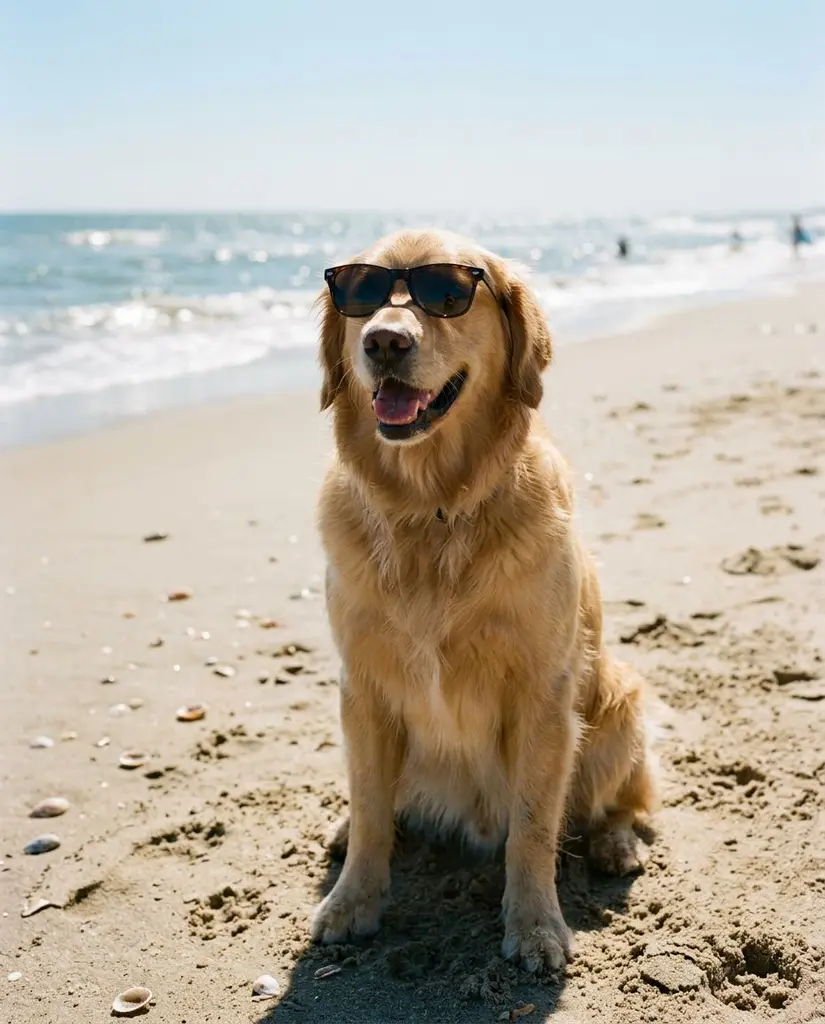
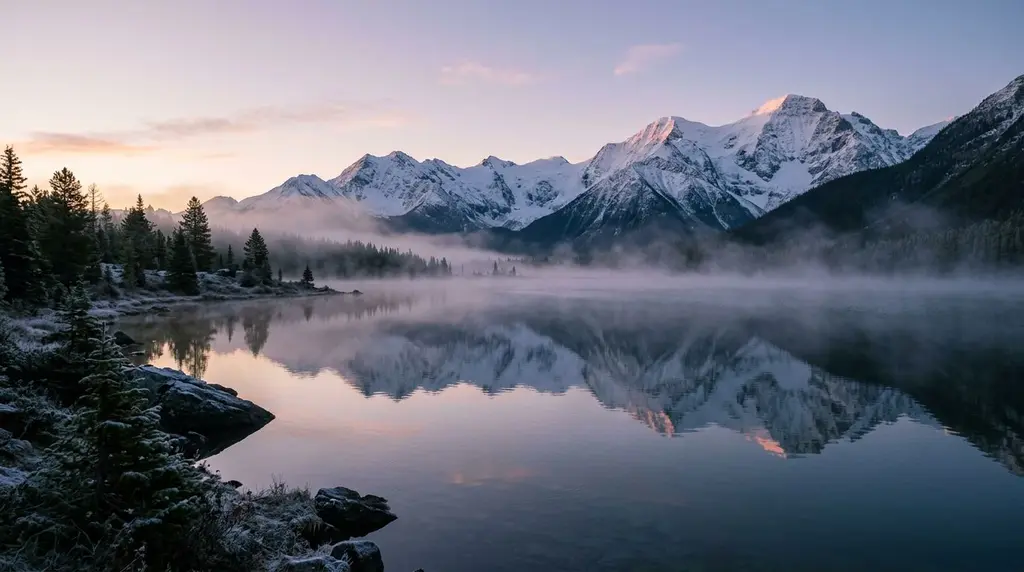
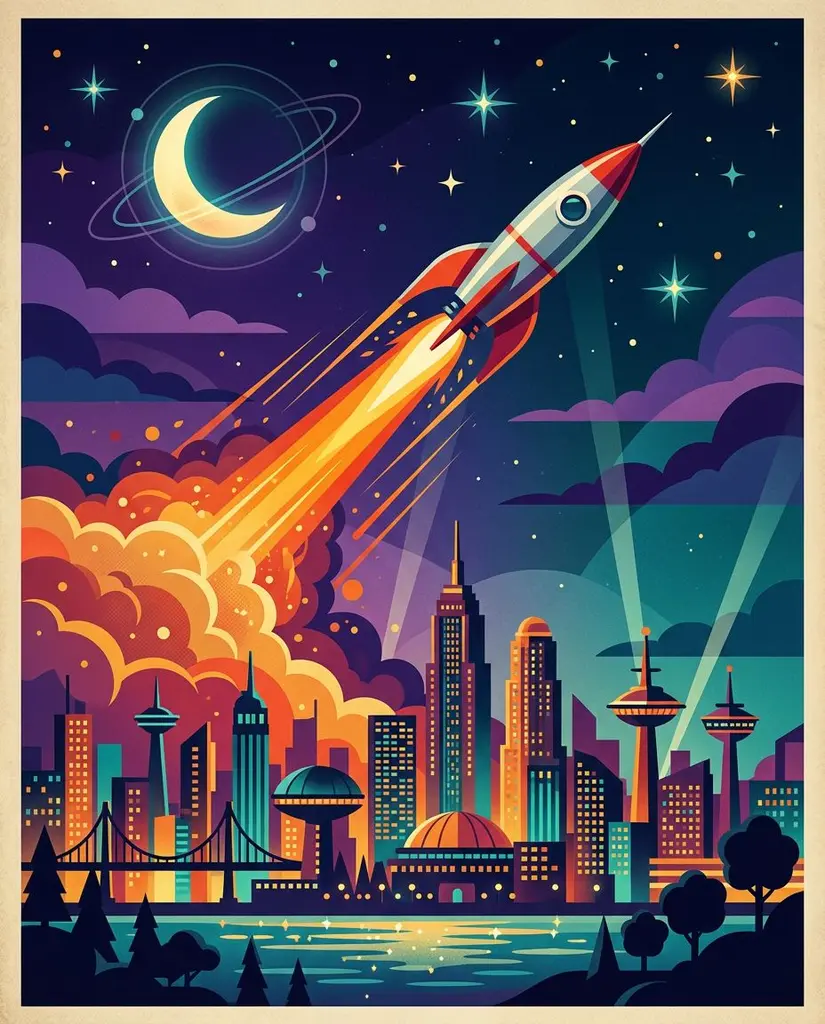
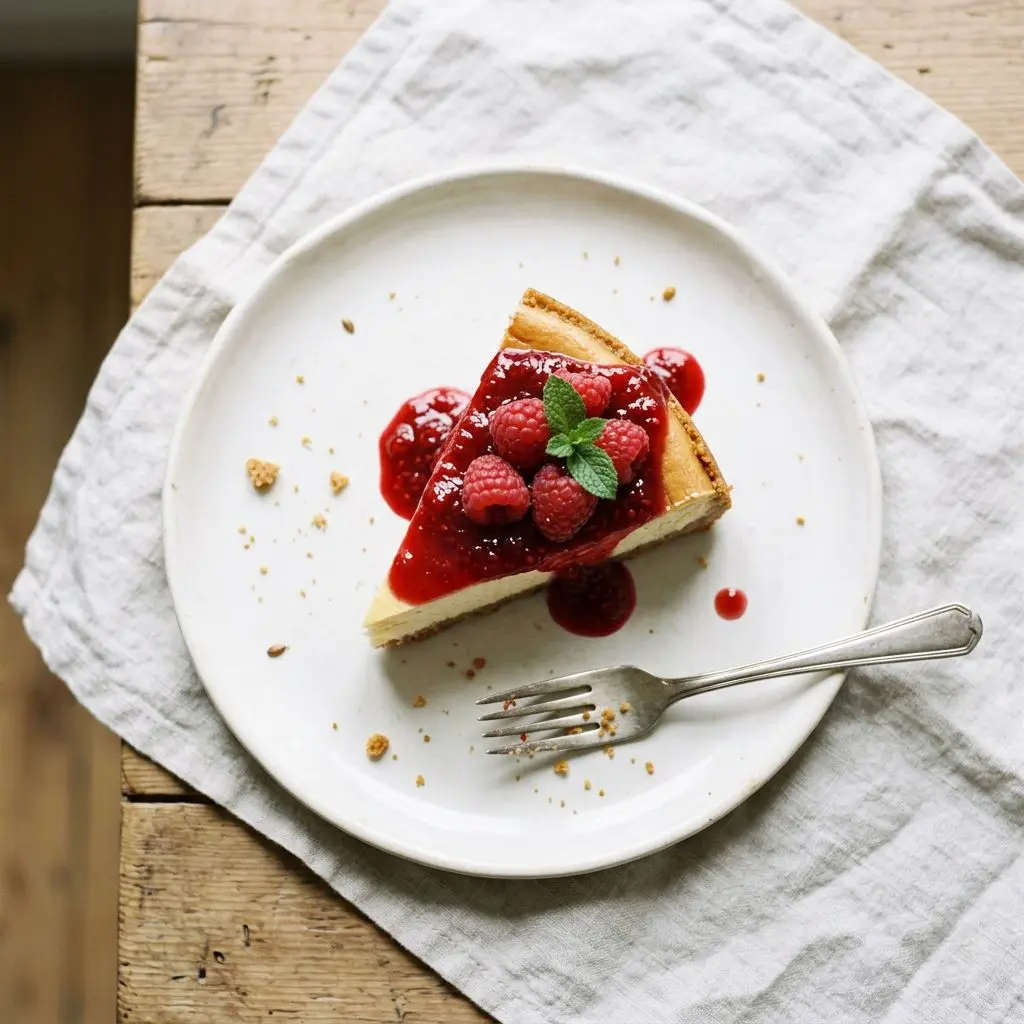
In the editor switch “Edit” to “Create” and choose “Image”. You don’t need a photo.
Who or what, where, what light and mood. Pick a format and a style. Want yourself in the scene? Add your photo.
In a few seconds the image is ready. Download it, try another version or move it to the editor.
You pay with credits, not a subscription. Credits never expire.
| Quality | Resolution | Cost | For |
|---|---|---|---|
| Standard | basic | 1 credit | screen, social media |
| Pro | 2K | 4 credits | print, portrait |
| Ultra | 4K | 8 credits | large print, wall |
| HQ download | 4× larger | 2 credits | when Standard already fits |
Step-by-step guide: how to create AI images from your photos, step by step
It depends on what you need. Text-only generators such as Microsoft Designer, Adobe Firefly or Canva are good for quick illustrations. PixiFixi is built for people who want themselves in the picture: you can add your own photo to the scene, and then edit the result with background change, object removal or upscaling, all in one place. New accounts get free credits.
In Create mode tap “Add yourself”, upload a photo where your face is clearly visible and describe the scene. AI puts you into it and keeps your features. If there are several people in the photo, it tries to keep all of them.
Yes, to start. A new account gets free credits with no card and no subscription. A Standard image costs 1 credit.
Both generate images, but there the image is part of a conversation. In PixiFixi you pick the format and style with buttons, and you can edit the result straight away: change the background, remove an object, upscale for print or turn it into a video.
Square 1:1, portrait 4:5, story 9:16, landscape 16:9 and photo 3:2. Stories suit Instagram and TikTok, landscape suits wallpapers and YouTube, square suits a profile picture.
Your own. The description is translated for the AI engine behind the scenes.
A few seconds at Standard quality. Pro (2K) and Ultra (4K) take longer, up to about a minute.
No. PixiFixi runs in the browser — open the page, upload a photo, download the result. There is nothing to install and nothing takes up space on your device.
Yes. Everything works the same on a phone as on a computer — upload straight from your gallery or take the photo right there. You can also add the app to your phone’s home screen.
JPG, PNG, HEIC from an iPhone and TIFF. A photo straight from your phone is fine — it is resized automatically before upload, so there is nothing to convert or compress yourself.
Only you can see them. They never appear in any gallery, are not used to train models and are not shared with anyone. You can delete them at any time, or switch on automatic deletion after 7, 30 or 90 days.
Swap the background of a generated image for another one — just describe it.
Add or remove an element that didn’t come out the way you wanted.
Upscale the image up to 4× for a print, a poster or a wallpaper.
One sentence is enough. You get free credits to start.
Create an image freeNo card · No subscription · Credits never expire