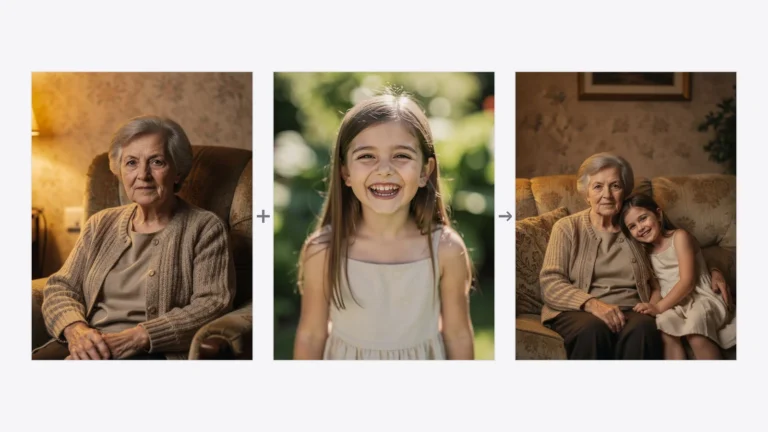


Precise Edit is a new PixiFixi tool: you mark spots on your photo with a finger or a mouse and describe each one separately. Everything outside the markers stays exactly as it was. You can mark up to 6 spots at once, and all the changes together cost 1 credit. New accounts get free starter credits, so your first tries are free.
It solves the most common problem with prompt-only editing: when a photo contains several similar things, typing “change the sofa colour” isn’t enough — the AI doesn’t know which one you mean. Here you simply point at it.
What precise photo editing means in PixiFixi
With prompt-only editing you tell the AI what should change. With Precise Edit you also tell it where. You drag a rectangle across the photo and PixiFixi asks: “What should change here?”. You type one short sentence and that’s it — the marker gets its own colour and number.
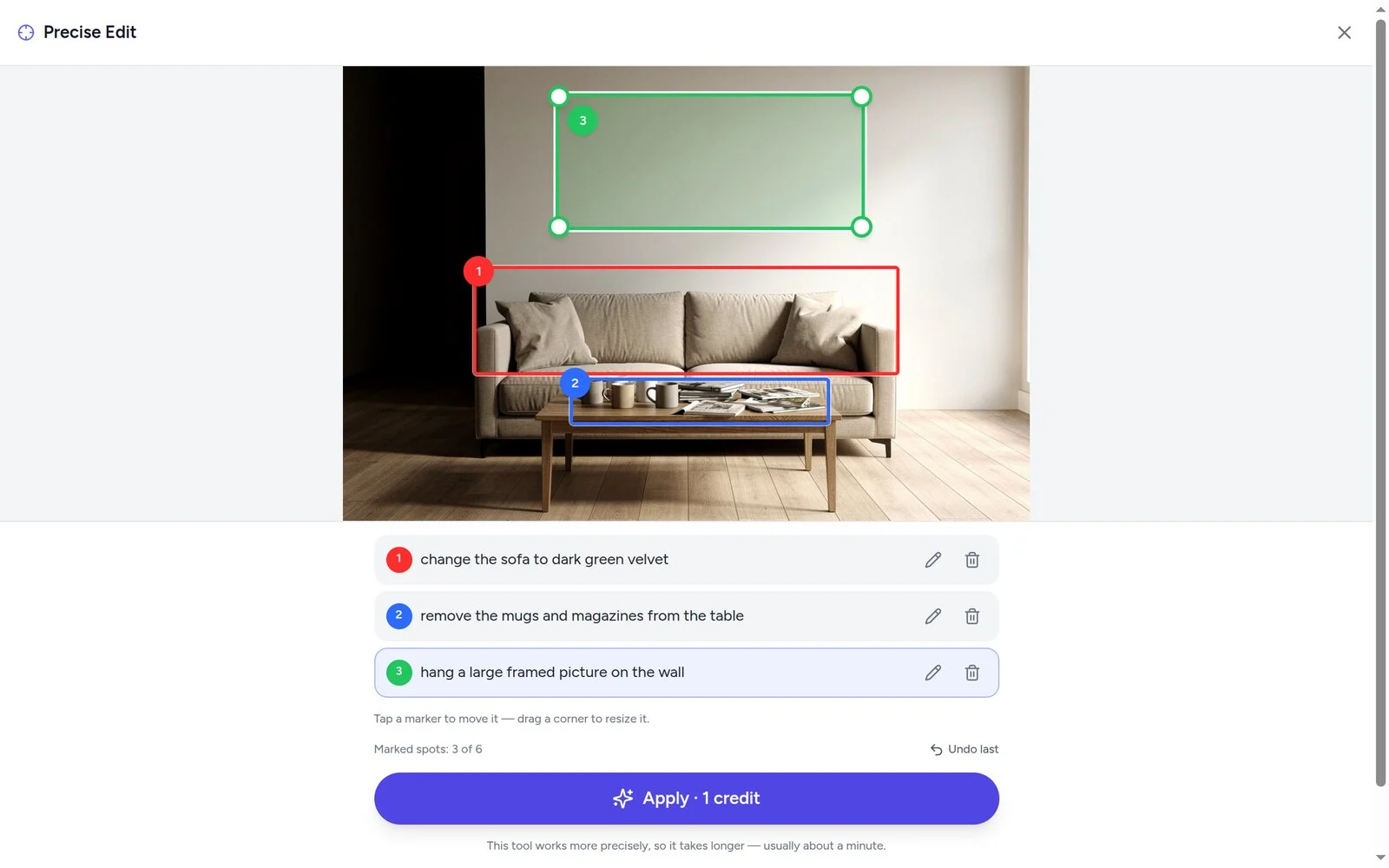
The coloured outlines and numbers are markers for the AI only — they never appear in the finished photo. They exist purely to connect your description with a specific part of the frame.
When you need to edit part of a photo
Precise Edit in PixiFixi earns its place whenever a description alone isn’t enough:
- The photo has several similar things — three people in similar shirts, two armchairs, a row of cars. You mark the right one and there is no ambiguity.
- You want several changes at once — for one credit you can recolour the furniture, clear the clutter and hang a picture on the wall.
- The change affects a small part only — and the rest of the shot must stay exactly as it was.
- Interior planning — see how a sofa would look in another colour, or a bare wall with art on it, before buying anything.
- Tidying up the frame — a messy shelf, cups on the table, a stray object in the background.
If you only want to erase one specific thing and don’t care about pointing at it, removing an object from a photo is simpler. And when the whole setting changes rather than a part of it, use the background tools instead — including removing the background.
How to edit part of a photo, step by step
- Create a free account or log in to PixiFixi.
- Upload the photo you want to fix.
- Pick the “Precise Edit” tool — the marking screen opens straight away.
- Drag across the photo with your finger or mouse to mark a spot.
- Describe briefly what should change there (e.g. “change the sofa colour to dark green”) and tap “Add”.
- Repeat for the other spots — up to 6 — and tap “Apply”.
You can adjust a marker at any time: tap it to move it, or drag a corner to resize it. The pencil icon edits the description and the bin icon deletes a marker you no longer need.
Your photo can look like this too
Try it on your own picture — no card, no subscription, and you get free credits to start.
The tool was designed for phones first, so marking with a finger is just as comfortable as using a mouse on a computer.
Example: three changes in one room for 1 credit
On this living room photo we marked three spots and typed three separate instructions:
- The sofa — “change the sofa to dark green velvet”
- The coffee table — “remove the mugs and magazines from the table”
- The wall — “hang a large framed picture on the wall”
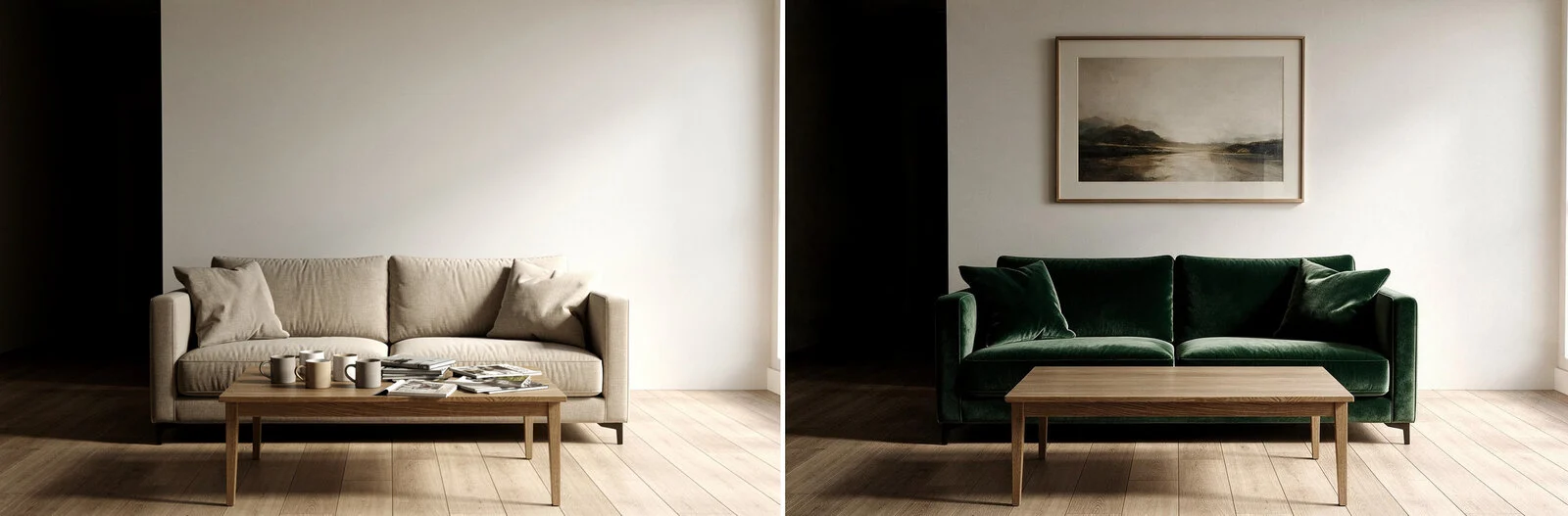
Notice what is not in the result: the coloured outlines and numbers. Exactly what we marked changed — the layout, the floor, the lighting and the perspective stayed the same. All three edits were one generation and one credit.
Example on a photo of a person
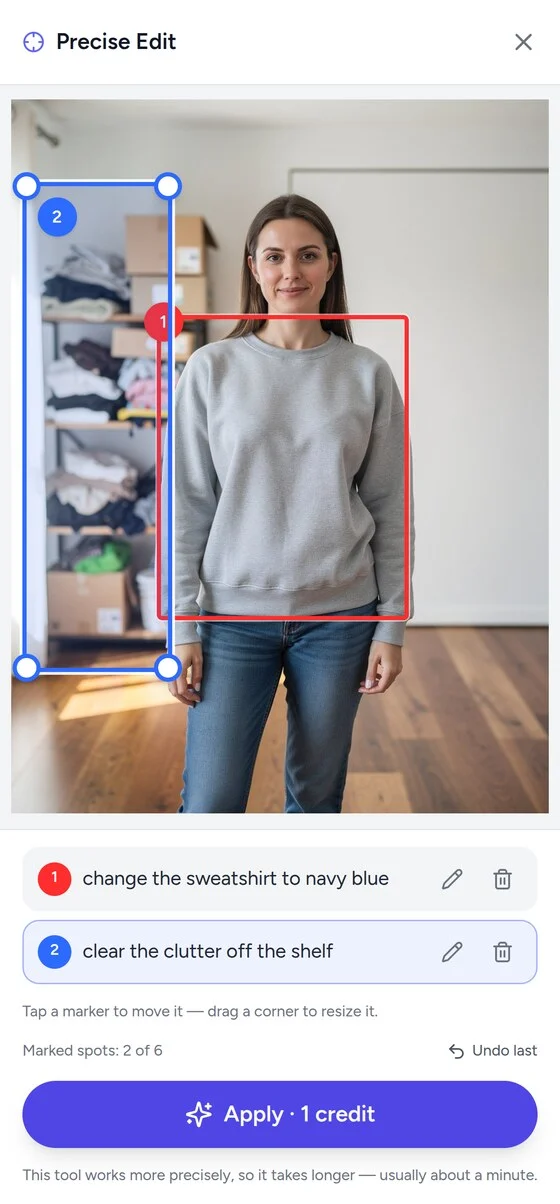
Precise Edit works just as well on photos of people. Here we marked the sweatshirt (“change the sweatshirt to navy blue”) and the cluttered shelf behind her (“clear the clutter off the shelf”):
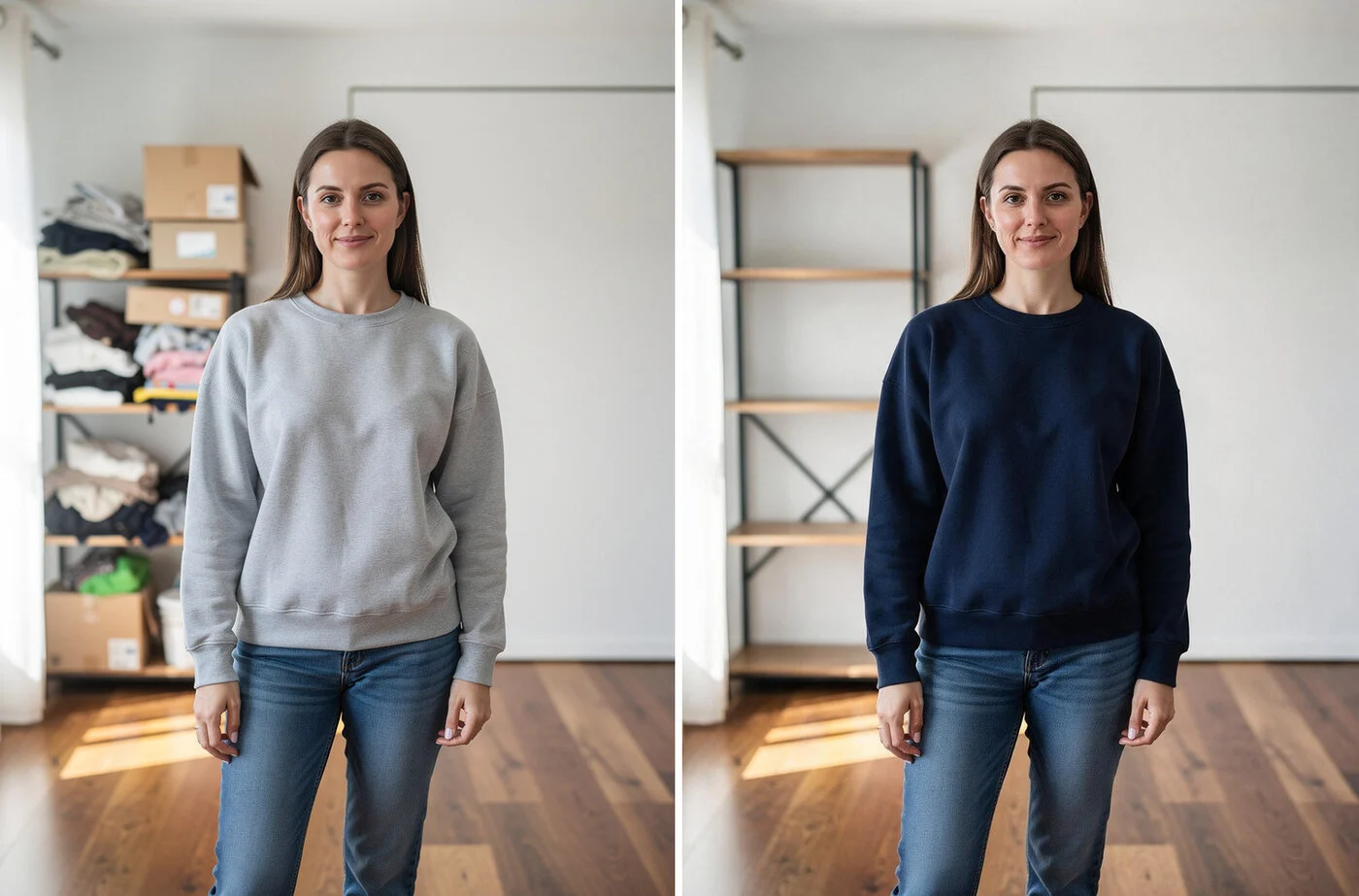
This is the classic situation with photos taken at home: the shot itself is good, but there are things in the background you would rather not show. Instead of finding another room, you mark it and ask for it to be tidied.
How Precise Edit differs from the other PixiFixi tools
| Tool | Do you point at the spot? | When to choose it | Cost |
|---|---|---|---|
| Precise Edit | Yes — up to 6 markers | Several changes at once, or one of several similar things | 1 credit |
| Add/Remove Object | No — you describe it | A single change that is easy to describe | 1 / 4 / 8 credits |
| Background Change | No | The whole setting changes | 1 / 4 / 8 credits |
| Remove Background | No | You need a transparent PNG | 1 credit |
In short: when the AI could pick the wrong spot, choose Precise Edit. When the change is single and obvious, a plain prompt is faster — see removing an object from a photo. All of these PixiFixi tools live in the same editor, so you upload a photo once and switch freely between them.
How much does Precise Edit cost? Is it free?
Precise Edit has a fixed price: 1 credit, no matter how many spots you mark — one or six. There are no Standard/Pro/Ultra levels here, because the tool always runs in the same precise mode.
| Detail | Value |
|---|---|
| Cost | 1 credit per generation |
| Markers | 1 to 6 |
| Output resolution | 1K |
| Time | usually about a minute |
New PixiFixi accounts get free starter credits, so your first precise edits cost nothing. There is no subscription and credits never expire — you only pay for what you use.
Why it takes longer than the other tools
Precise Edit runs on a slower but considerably more accurate AI engine — one that can read the markers drawn on the photo and match each instruction to the right part of the frame. A run usually takes about a minute, longer than the other PixiFixi tools. That is normal, so just let it work.
Tips for a better result
- Mark generously — cover the whole element including its edges. A marker that hugs the object too tightly makes the AI’s job harder.
- Keep it short and concrete — “change the coat colour to navy blue” works better than a long paragraph.
- One change per marker — if you want two different things in the same place, draw two markers.
- Write in your own language — PixiFixi translates your description for the AI engine automatically.
- Don’t mark the whole photo — if the change affects everything, a background tool or the “Other” tool will be a better fit.
- Want a bigger file? Use “Download → High quality” in your history to enlarge the finished result.
Frequently asked questions
Below are the questions that come up most often on a first run with Precise Edit in PixiFixi. If you are after something else, see the guide to removing an object from a photo or restoring old photos.
Mark the spots you want changed with a rectangle and describe each one separately. PixiFixi only changes the marked areas, and the rest of the frame stays the same. You can mark up to 6 spots in a single generation.
No. Precise Edit always costs 1 credit per Apply, regardless of how many spots you marked. New accounts get free starter credits, so your first tries are free.
No. The outlines and numbers are markers that connect your description to a specific part of the frame. The AI removes them during generation and they never appear in the result.
No — you mark rectangles. It is faster and more reliable, especially with a finger on a phone, and the AI only needs to know where on the photo to work.
Yes. Tap a marker to move it, or drag one of its corners to resize it. The pencil icon edits the description and the bin icon removes the marker entirely.
When removing an object you describe what should disappear and the AI looks for it in the frame. With Precise Edit you also point at the spot, so there is no confusion when the photo contains several similar things. You can also request several different changes at once.
It uses a slower but more accurate AI engine that can read the markers drawn on the photo. A run usually takes about a minute — longer than the other PixiFixi tools.
Yes, and it was designed for phones first. You mark with your finger and the photo fills the whole screen. PixiFixi runs in the browser, so there is nothing to install.
Up to 6. If you need more changes, do them in two rounds — use the “Edit again” button in your history to keep working on the finished result.
Summary
Precise Edit is the simplest way to tell the AI not just what to change, but where. Mark, describe, tap — and you get a photo where exactly what you asked for has changed. Explore the other PixiFixi tools too: removing an object from a photo, removing the background, restoring old photos, changing clothes in a photo and animating photos.