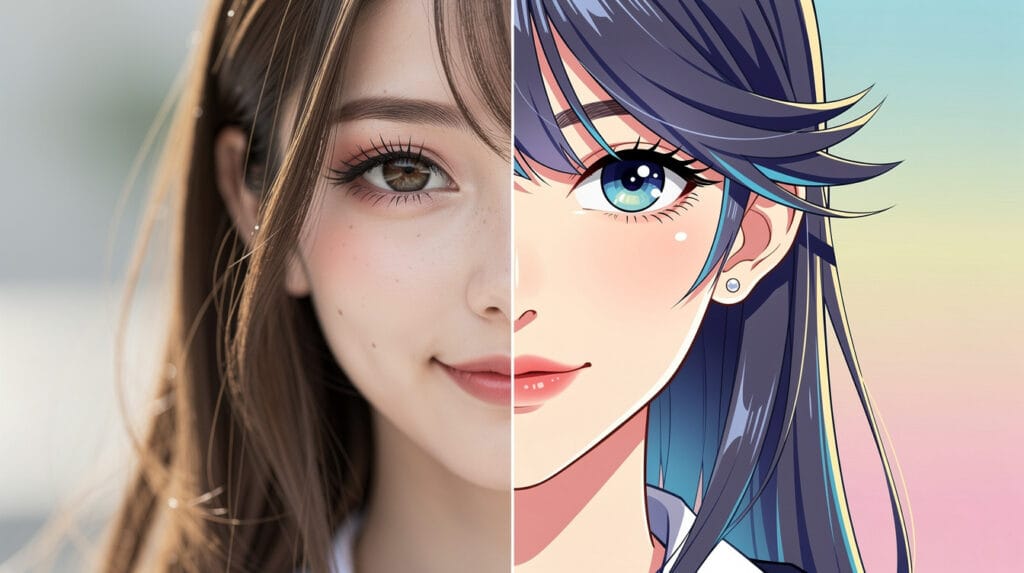
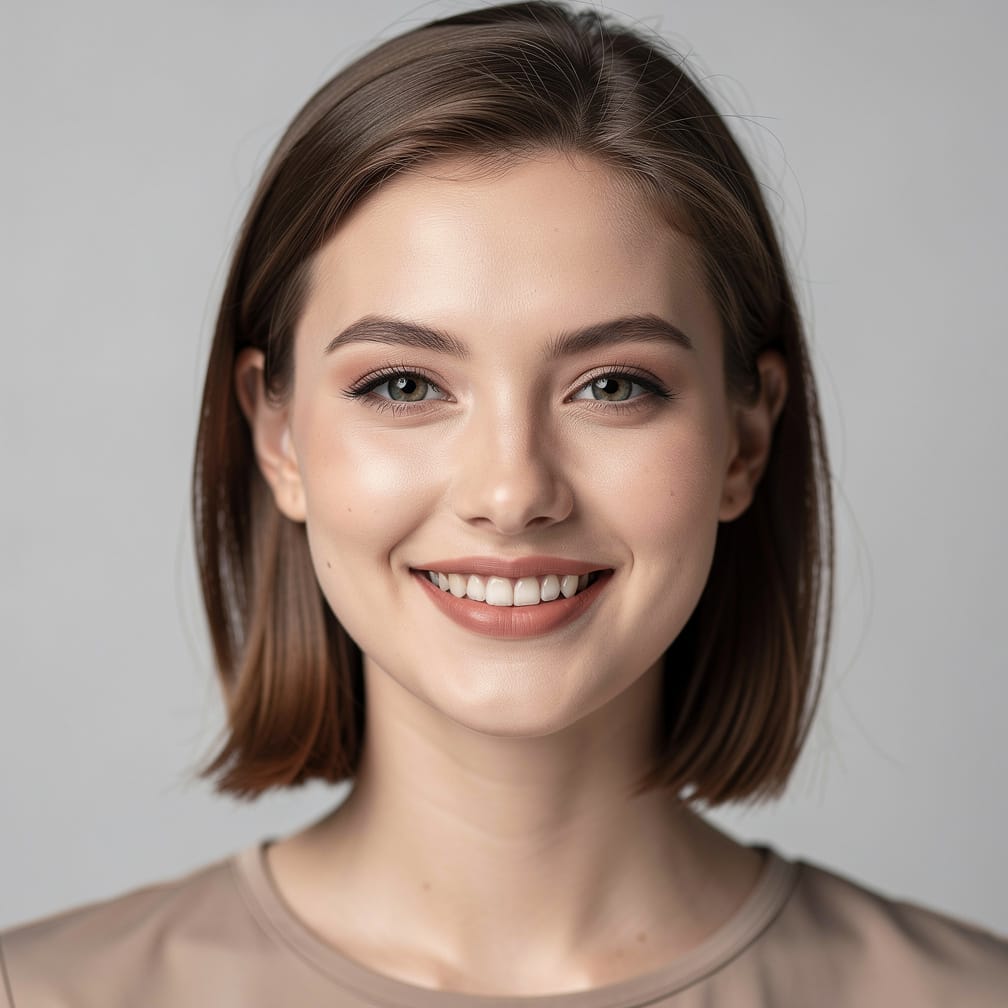
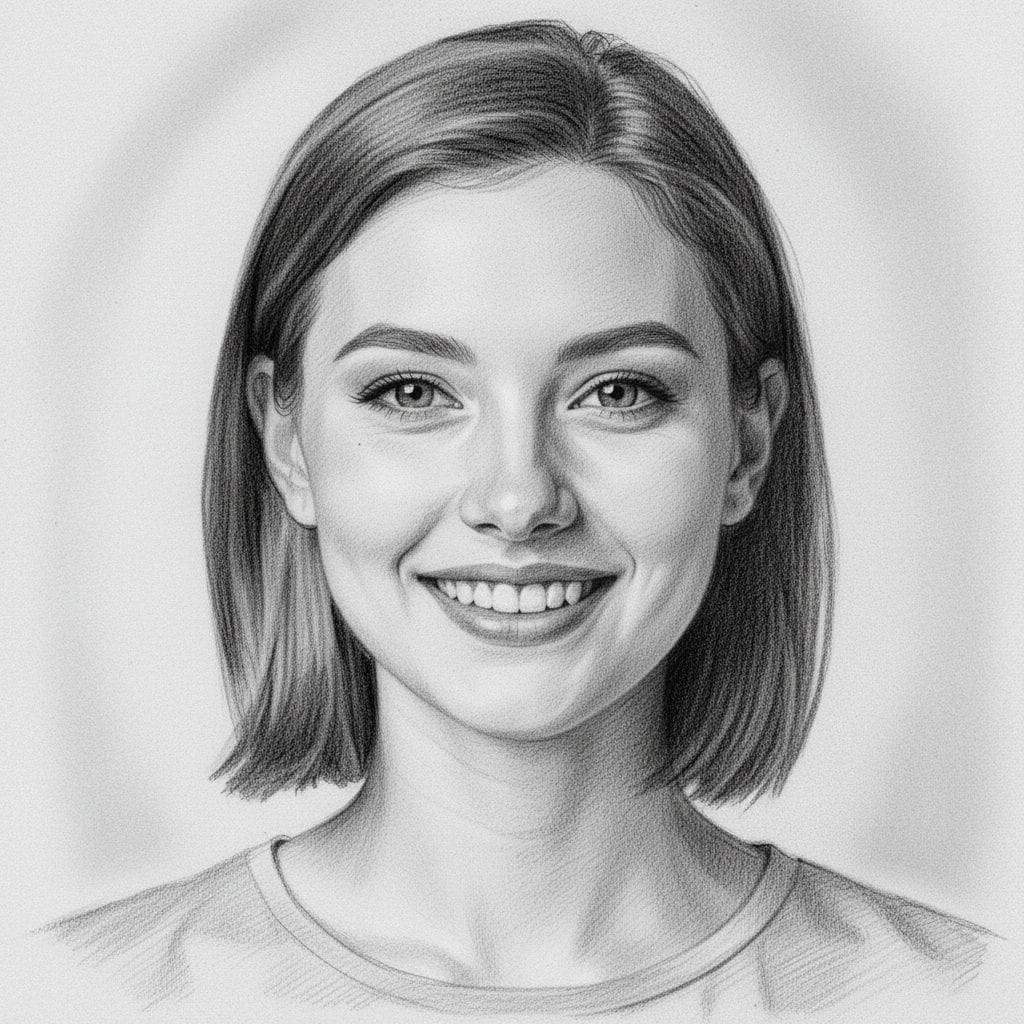
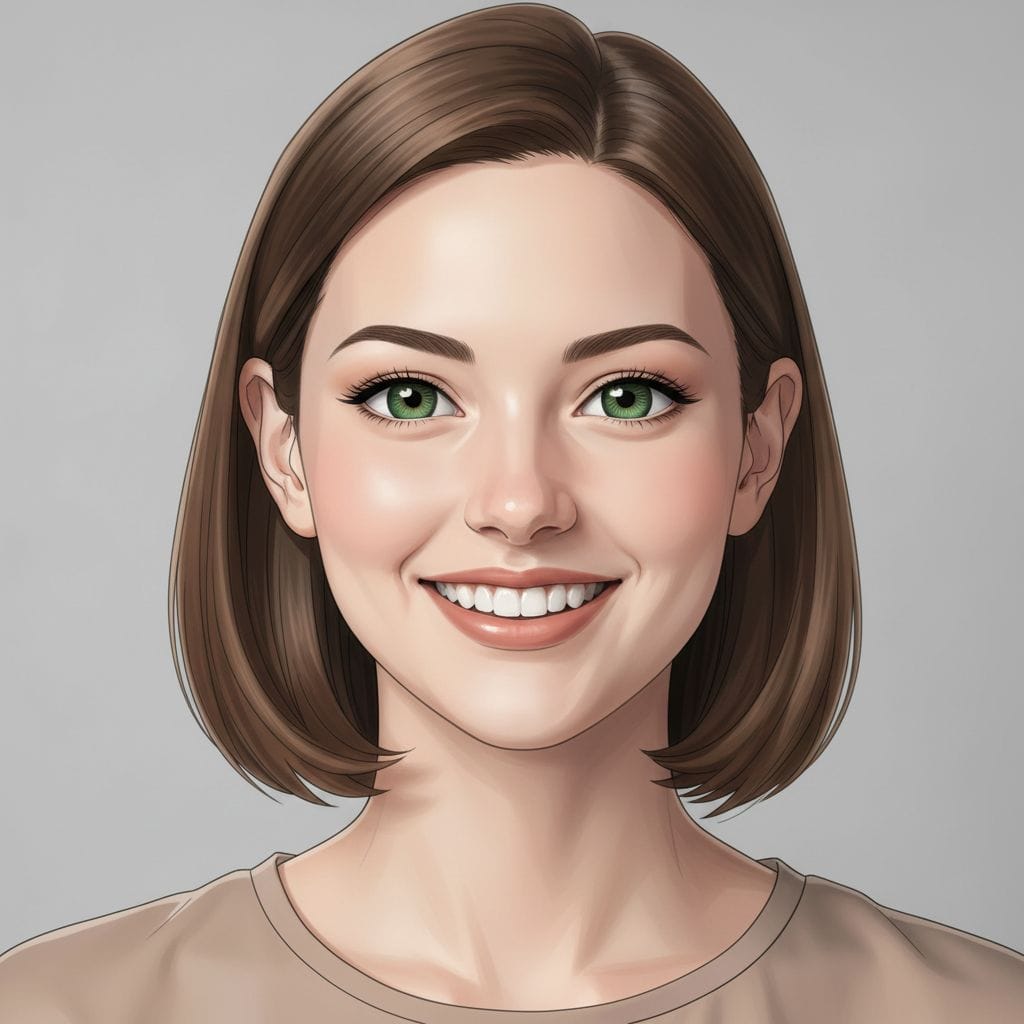
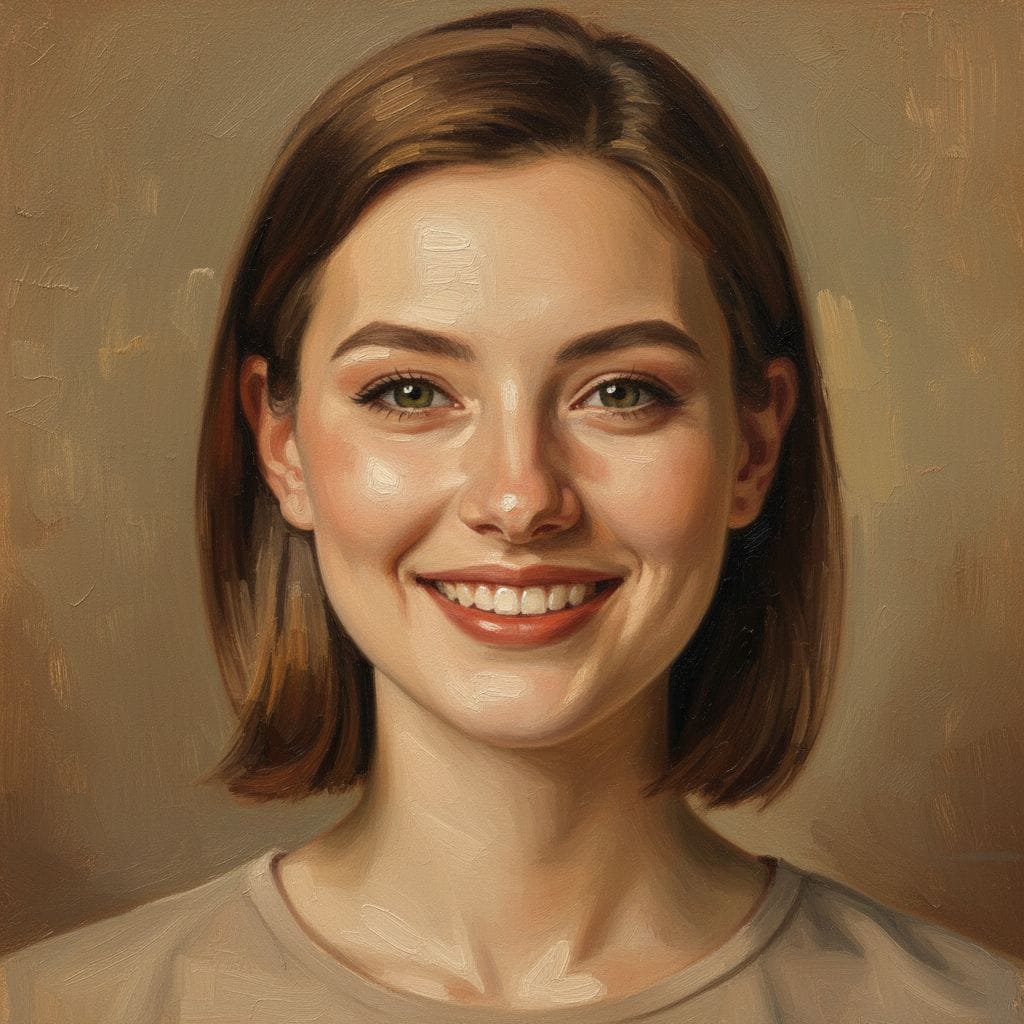
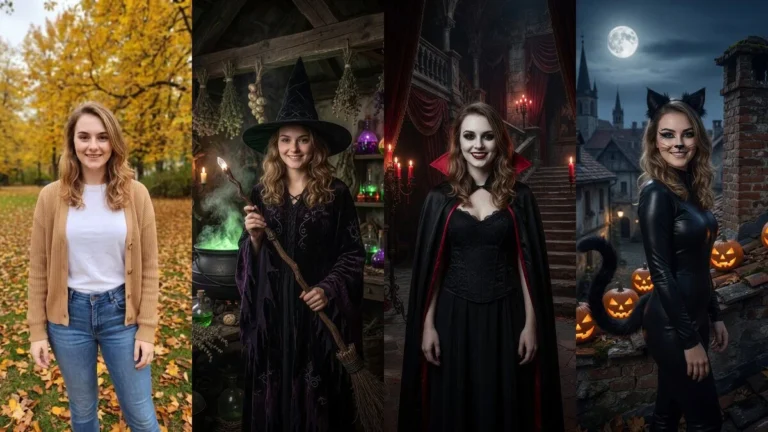
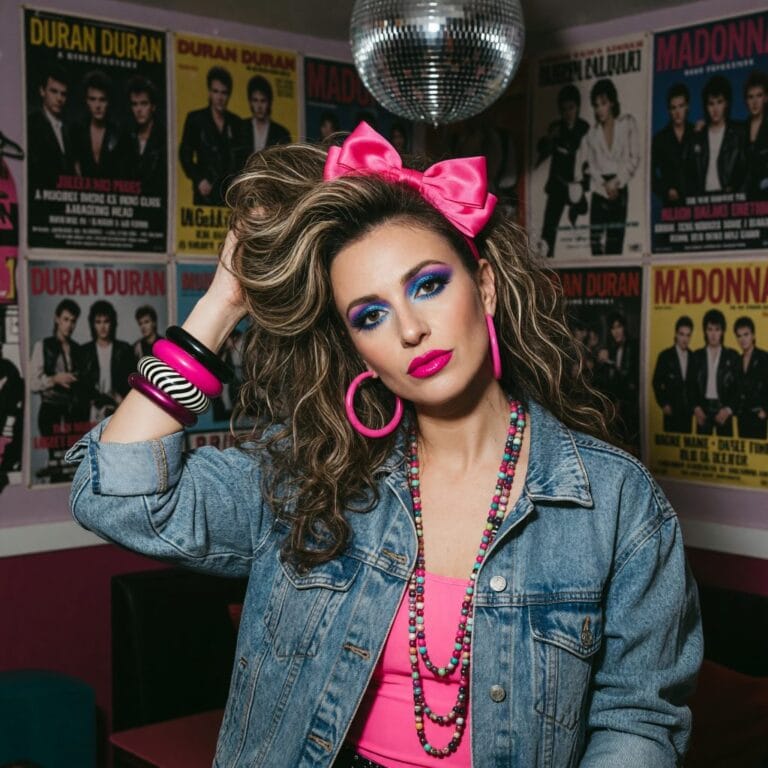
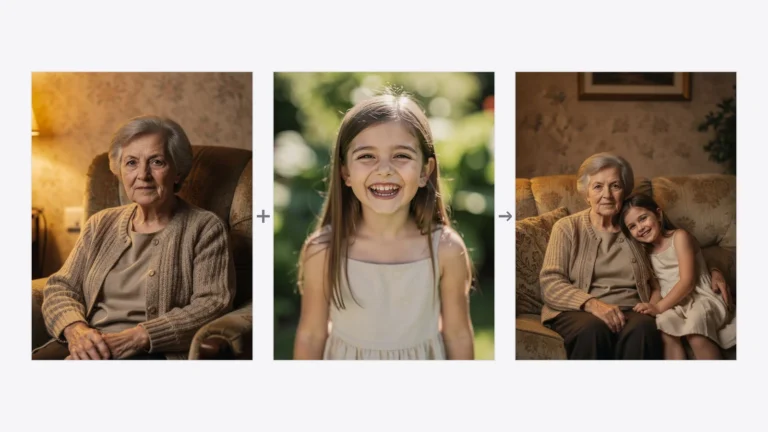
To turn a photo into anime, a cartoon or a drawing, upload it, open the Change Style tool, pick a style (or describe your own), and click “Apply” — the AI redraws your photo in seconds while keeping your face. It all runs online, with no software to install. Your first tries are free.
This guide shows which styles you can use, how to convert a photo step by step in PixiFixi, what prompts to type, and what it costs.
What styles can you turn a photo into?
The Change Style tool redraws the whole photo in a chosen aesthetic while keeping the face and composition. The most popular looks:
Anime / manga — Japanese animation style, soft cel shading, expressive eyes
Upload your photo — a clear portrait with a visible face works best.
Pick the “Change Style” tool.
Pick a style (anime, cartoon, sketch…) from the presets, or click “Custom” and describe your own.
Click “Apply” and download the result a few seconds later.
Each generation gives a slightly different result — run it again until you land on the perfect version.
Prompts for custom styles
When you use “Custom”, a clear prompt helps. Proven examples:
“Anime style, soft shading, Japanese line art”
“Cartoon style, clean outlines, bright colors”
“Black-and-white pencil sketch with cross-hatching”
“Oil painting, visible brush strokes, warm tones”
“Watercolor, soft pastel colors”
Tip: add one extra detail (e.g. “on a white background”, “pastel colors”) to steer the AI toward the look you want.
Will the AI keep my face?
Yes. Change Style redraws the photo in a new aesthetic but keeps the facial features from the original — the person stays recognizable, only the “line” and colors change. For the best likeness, use a sharp photo with a clearly visible face.
How much does it cost? Is it free?
One style change costs 1 credit on Standard, 4 credits on Pro (2K), or 8 credits on Ultra (4K). New accounts get free starter credits, so your first Standard conversions cost nothing. No subscription, credits never expire.
What’s it good for?
Avatar / profile picture in anime or comic style
Gift — a “painted” portrait from a family photo
Posts and Stories — quick, scroll-stopping social content
Print / poster — Ultra (4K) is ready to print
Frequently asked questions
How do I turn a photo into anime?
Upload your photo to PixiFixi, open the Change Style tool, pick the anime preset (or type “anime style, soft shading, Japanese line art” in Custom), and click Apply. The AI redraws your portrait in anime/manga style in seconds while keeping a recognizable face.
How do I turn a photo into a cartoon or sketch?
Open Change Style and pick the cartoon or pencil-sketch preset, or describe it in Custom (e.g. “cartoon style, clean outlines”). The AI converts the whole photo while keeping your face and pose.
Is turning a photo into art free?
New accounts get free starter credits, and one style change on Standard quality costs 1 credit — so your first tries are free. After that it’s 1 credit on Standard, 4 on Pro (2K) or 8 on Ultra (4K), with no subscription.
What styles are available?
The most popular are anime/manga, cartoon, pencil sketch, comic book, oil painting, watercolor and pop-art. You can also describe your own style in the Custom option.
Will the AI keep my face?
Yes. Change Style redraws the photo in a new aesthetic but keeps the facial features from the original, so the person stays recognizable. A sharp photo with a clearly visible face gives the best likeness.
Can I print the converted photo?
Yes. Generate on Ultra quality (4K, 8 credits) — that file is suitable for printing as a poster or canvas. Standard is enough for social media.
Summary
Turning a photo into anime, a cartoon or a painting is one of the most fun AI effects — upload a photo, pick a style, click, and you get a finished image with your face kept. Check out the AI photoshoot generator for a realistic look, or animate your photo into a short video.