

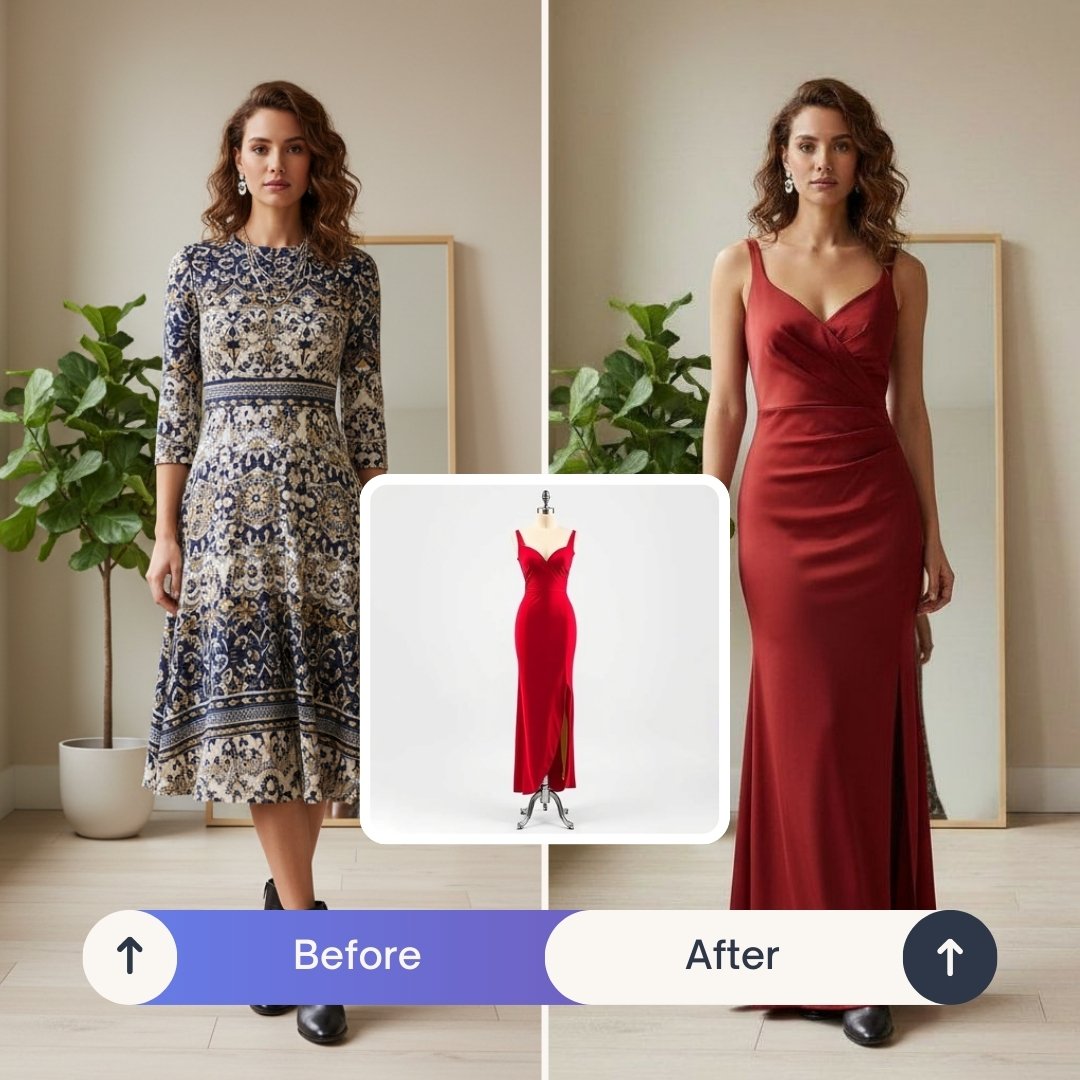
Wondering how to change clothes in a photo with AI without using Photoshop? With modern tools like PixiFixi’s Virtual Try-On, you can upload a picture and instantly see yourself wearing a completely different outfit — no design skills required.
In this guide, you’ll learn exactly how to change clothes in a photo step by step using AI.
Step 1: Upload a Clear Photo
Start by uploading a high-quality photo of yourself (or the person whose outfit you want to change) inside PixiFixi.
- Use a front-facing photo
- Make sure lighting is good
- Avoid heavy shadows
- Stand naturally (no extreme angles)
- Show the body area where the outfit will appear
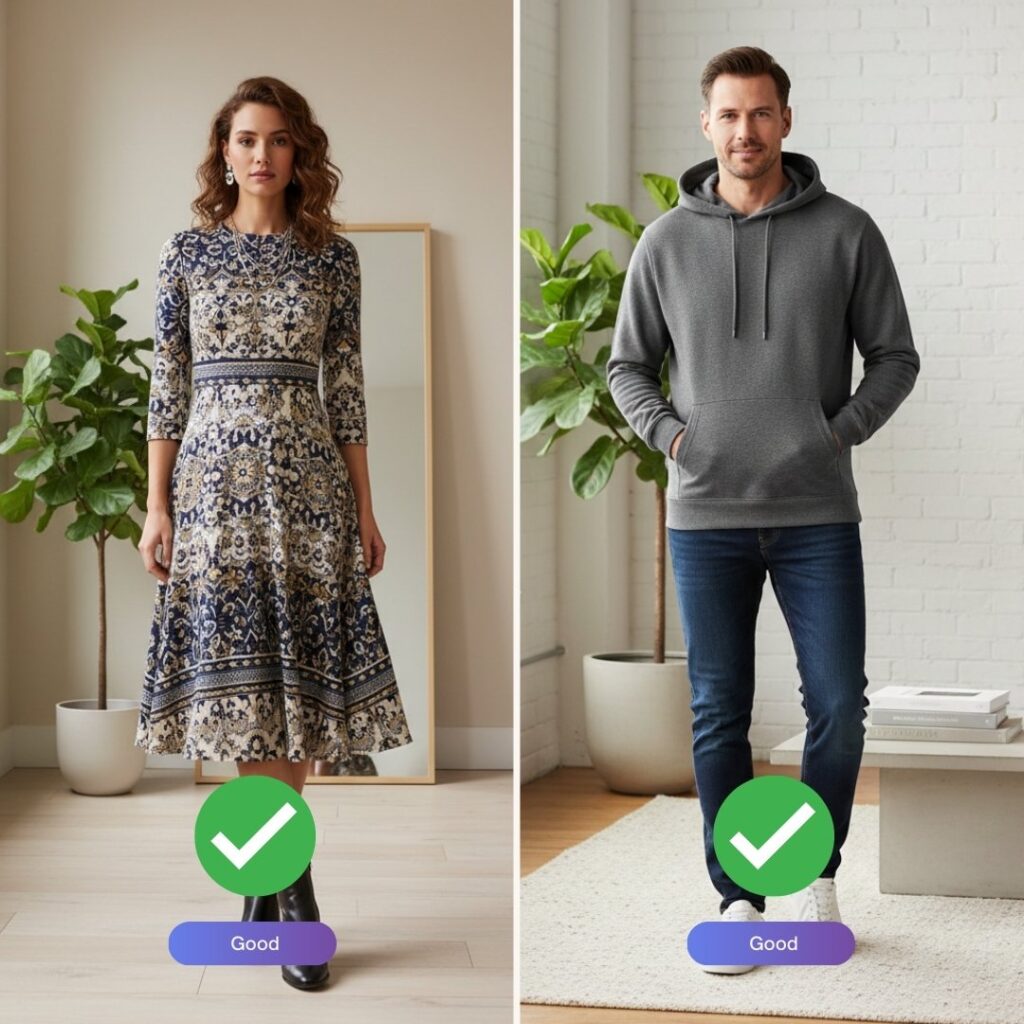
If you want to try on a dress, make sure the photo shows at least down to the knees. If you’re changing a shirt or jacket, a half-body image works perfectly. Examples below of good and wrong photos:
Step 2: Open the “Virtual Try-On” Tool
In the PixiFixi editing panel, select the Virtual Try-On tool. This AI feature automatically detects the clothing area and prepares it for transformation.
You don’t need to manually select the outfit — the AI handles detection and blending automatically.
Step 3: Add or Describe the Outfit
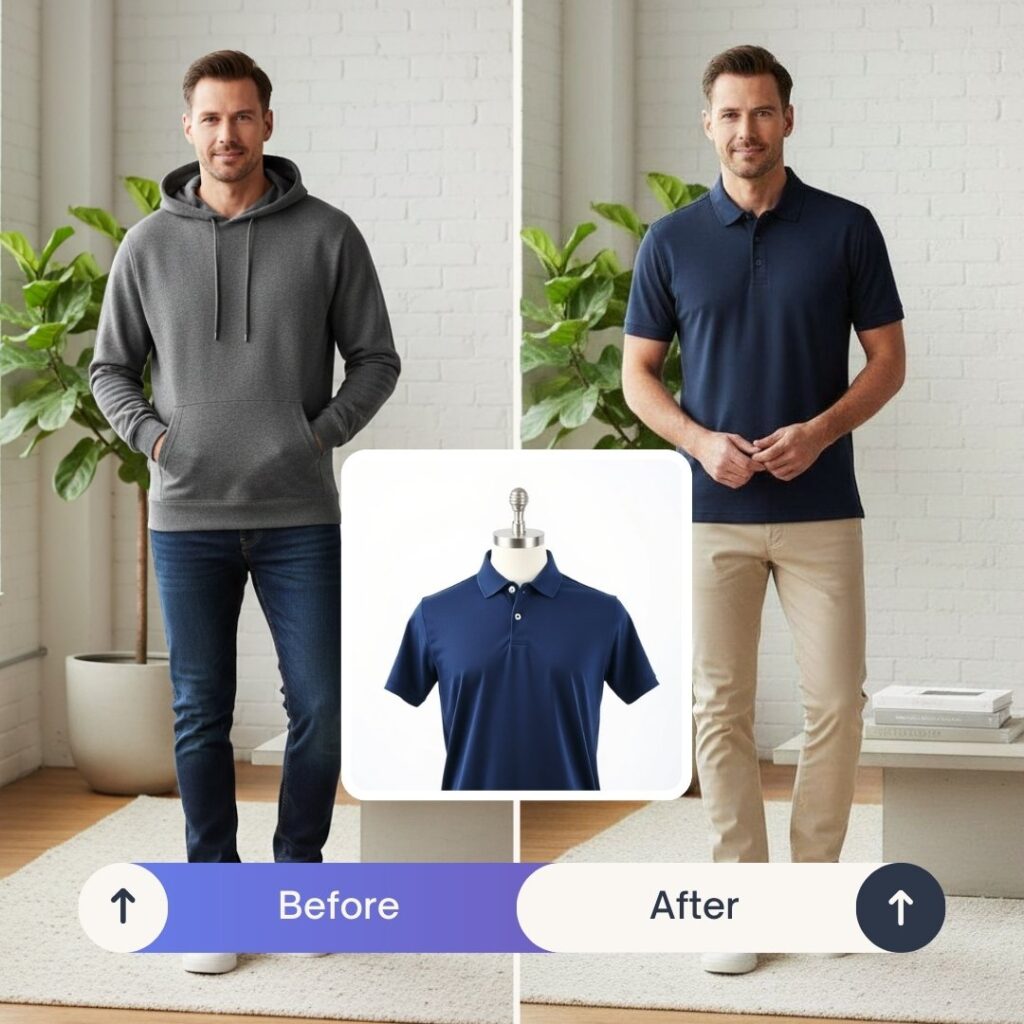
Option A: Upload a Clothing Image
- Upload a product photo from an online store
- Use a clothing image from your phone
- Choose an image from your computer
- Prefer clean or white backgrounds
- Clothing on hangers works best
Example:
Option B: Describe the Outfit with Text
If you don’t have a clothing image, simply describe the outfit. PixiFixi’s AI will generate it for you.
- Elegant black evening dress with long sleeves
- Oversized beige hoodie, streetwear style
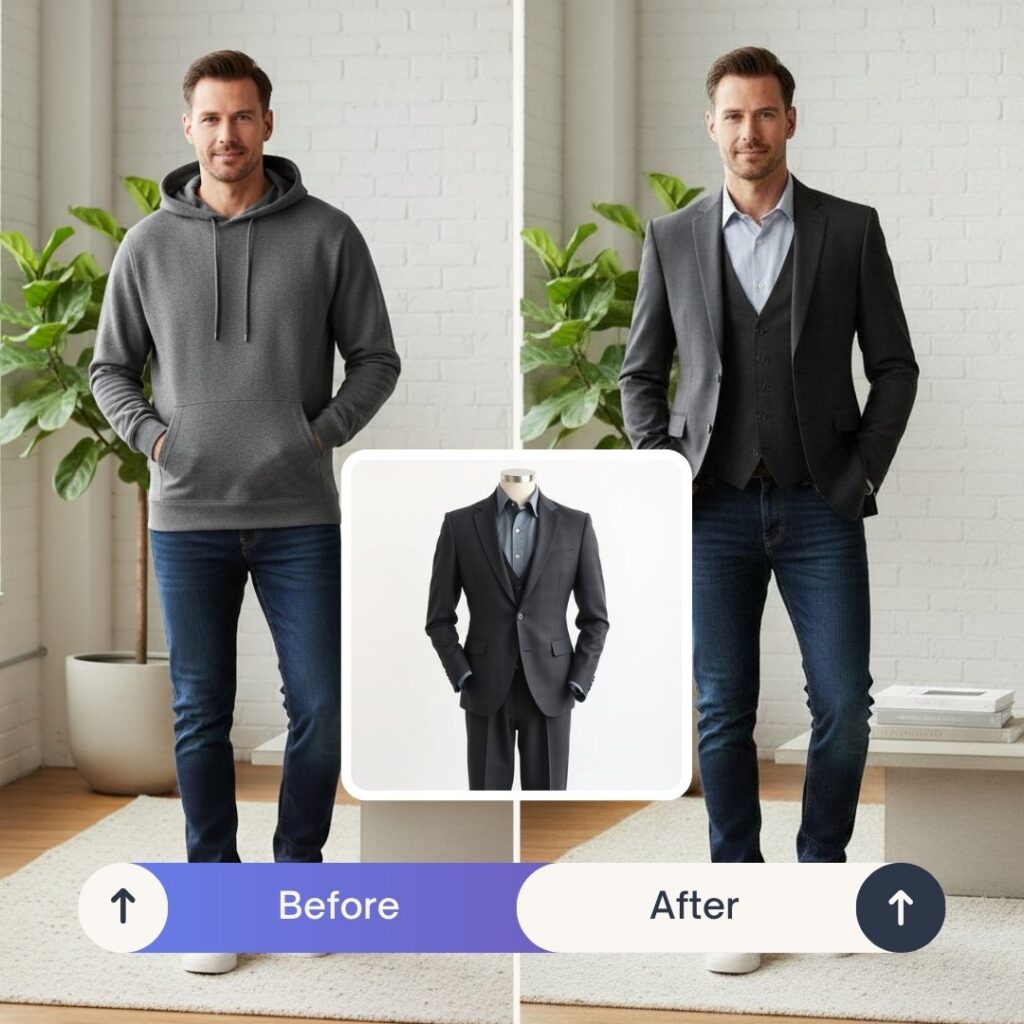
- Navy blue business suit with slim fit cut
- Summer floral dress, lightweight fabric
The AI will generate the outfit and apply it naturally to your body, matching proportions and lighting.
Anpther example:
Step 4: Click Apply and See the Result
PixiFixi’s AI will:
- Adjust proportions to your body
- Match lighting and shadows
- Preserve posture
- Blend the outfit realistically
Within seconds, your updated photo will be ready.
How to Get the Most Realistic Results?
- Avoid close-up selfies
- Don’t crop important body parts
- Use neutral poses
- Avoid crossed arms covering clothing
- Keep hair away from shoulders and chest
What Can You Use PixiFixi’s Virtual Try-On For?
- Testing outfits before buying
- Creating social media content
- Upgrading LinkedIn profile photos
- Visualizing fashion ideas
- Preparing product previews for online stores
- Trying different styles instantly
Do You Need Photoshop to Change Clothes in a Photo?
No. PixiFixi’s Virtual Try-On automates masking, blending, color correction and lighting adjustments in seconds — without advanced editing skills.
Final Thoughts
If you’ve ever wondered how to change clothes in a photo without complicated software, AI makes it simple. Upload your image to PixiFixi, open Virtual Try-On, choose or describe an outfit, and see yourself in a completely new style instantly.